Adjustments
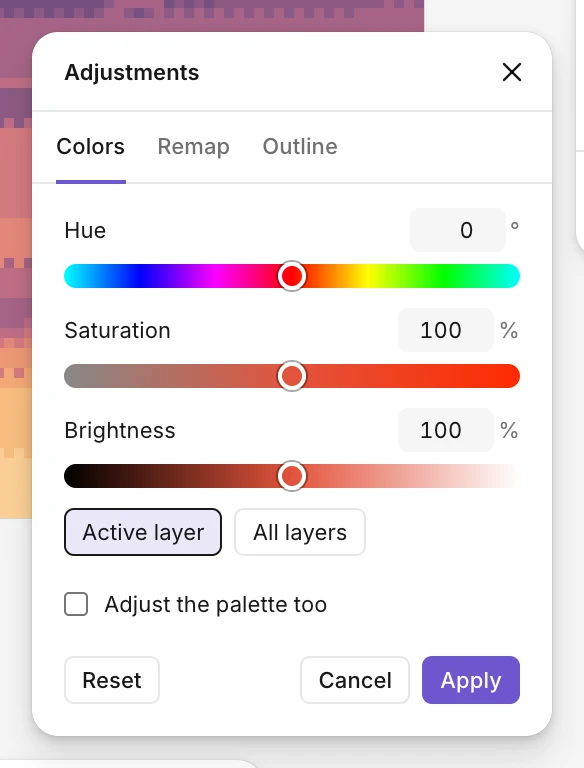
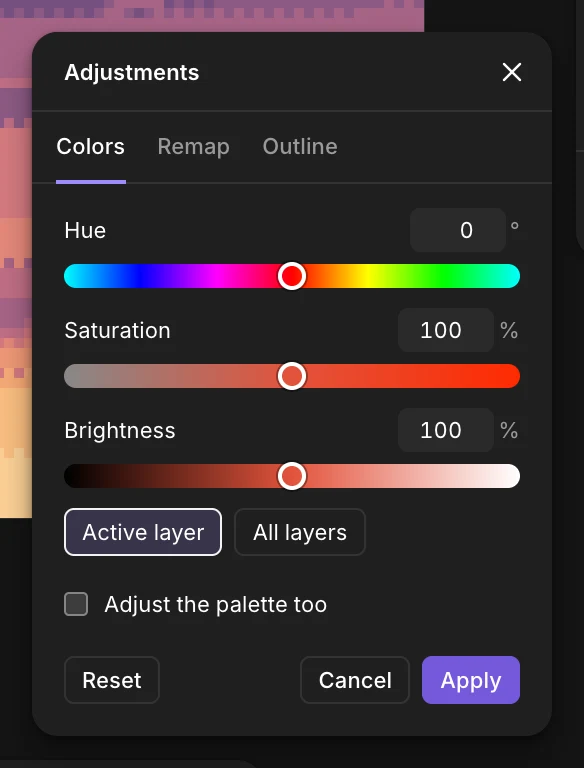
Image › Adjustments (Ctrl+U) opens a panel with three tabs. You see the result on the canvas as you go, then Apply or Cancel. With a selection, only the selection changes.
On an animation, All frames (on by default) changes every frame at once, in one undo step; untick it to change only the frame you’re on.
Colors
Hue, saturation and brightness, for the active layer or all layers. Adjust the palette too changes the palette’s colors with them, so the drawing and its palette stay together.
Remap
Move a drawing to another palette, or clean up its colors:
- Nearest: each color goes to the closest one of the palette. To clean up a drawing with a few stray colors.
- By lightness: colors go to palette colors in the same order, darkest to darkest. It recolors and keeps the shadows and highlights: a sprite in another palette, a scene at night.
- Also replace the file’s palette switches the file to that palette at the same time.
- Also remap the background takes the board’s background color to the palette too, in the same undo step. It shows when the board has a background and nothing is selected, since a selection limits the remap to its pixels.
Outline
A one-pixel line around what’s drawn on the layer, outside or inside, in the color you pick (Shift+O opens it). For an outline that stays editable, use an Outline effect on the layer instead.