Layers and groups
Each part of a drawing can have its own layer: the sky, the background, each character. Change one without touching the others.
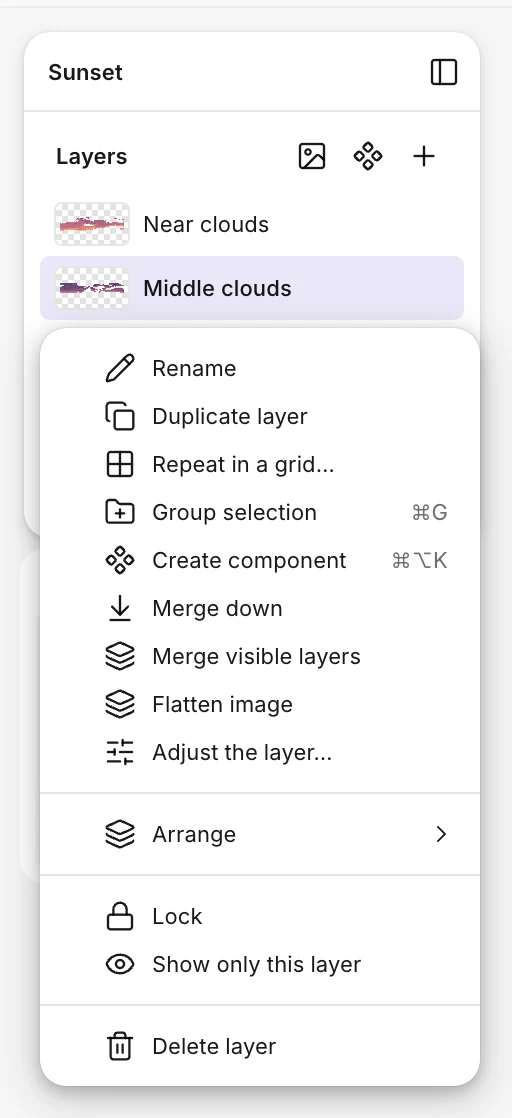
Layers
- Add a layer with the + next to Layers (Shift+N). It goes above the active one.
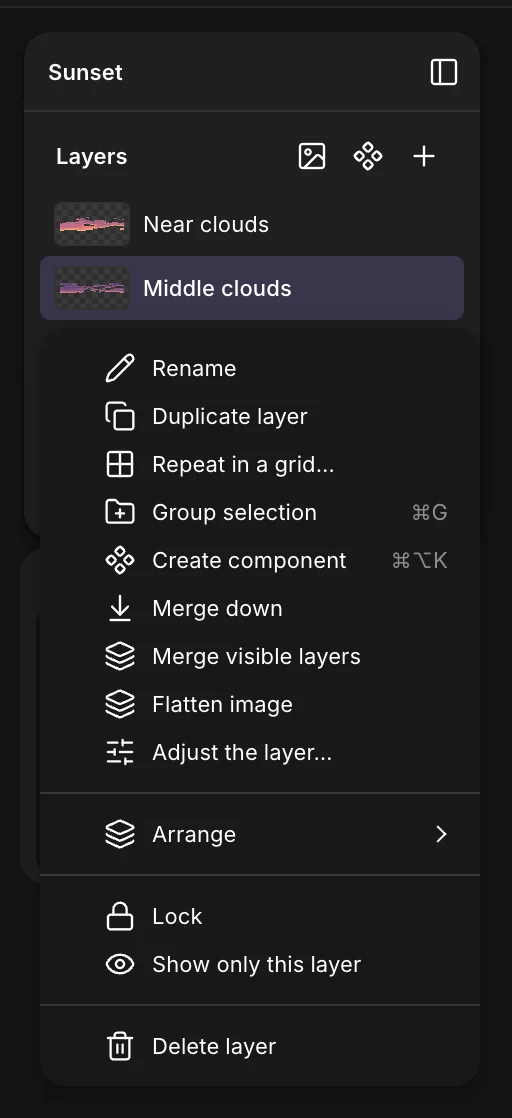
- Duplicate (Shift+D), Merge down (Shift+M), Merge visible layers and Flatten image are in a layer’s right-click menu and the Layer menu.
- Hide a layer with its eye. Alt-click the eye to show only that one.
- Lock a layer so nothing draws on it by mistake.
- Reorder by dragging a row, or with Arrange in a layer’s right-click menu and the Layer menu: Ctrl+] brings it forward and Ctrl+[ sends it backward (Alt+↑ and Alt+↓ too), with Shift to the front or the back of its group.
- Right-click on the canvas with the Move tool: the layer under the pointer, or its group, gets picked and its menu opens there.
- Delete: Del with nothing selected on the canvas, or Delete layer in its menu. The message that follows has an Undo.
Several at once
Shift-click a row to select a range, Ctrl-click to add or remove one. With the Move tool, Shift-click on the canvas adds the layer under the pointer, and dragging from an empty spot selects every layer the rectangle touches. Selected layers move, merge, group and delete together.
Groups
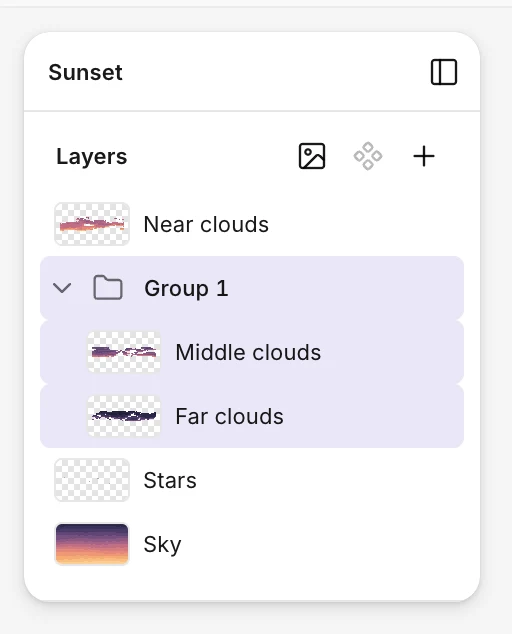
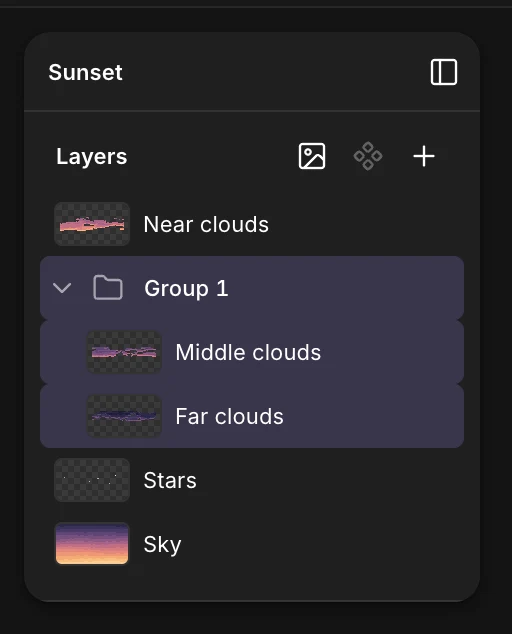
- Group selection (Ctrl+G) puts the selected layers in a group. Ungroup (Ctrl+Shift+G) takes them out.
- Groups go four levels deep. Drop a layer on a group’s row to put it inside.
- The arrow folds a group. A group has its own visibility, lock, blend mode and opacity, like a layer.
- With the Move tool, a click picks a layer’s group; double-click to go into it.
- Merge group turns it into one layer.
Between files
With nothing selected on the canvas, Ctrl+C in the Layers panel copies the selected layers, whole. Paste them in another file with Ctrl+V: they keep their names, blend modes, effects and animation.
Reference image
File › Reference image…, or the image button next to Layers, places a picture under every layer, to trace over. It shows at the bottom of the panel: select it to move, resize or fade it. It’s never exported. The eyedropper picks its colors where nothing is drawn over it, in full whatever its opacity: a quick way to start a palette from a picture. To remove it, the trash next to its name in the right panel, its right-click menu, or Delete once it’s selected. Undo (in the toast, or Ctrl+Z) brings it back.
For isometric scenes
Layer › Sort by depth puts the layers whose drawing reaches lowest on screen in front: with one object per layer, the closest ones end up on top.