Create and open files
A new file
File › New file…, or Create on the files screen. Type a width and a height, or pick one of the sizes you used last, and press Enter. From an image… at the bottom starts from a picture instead.
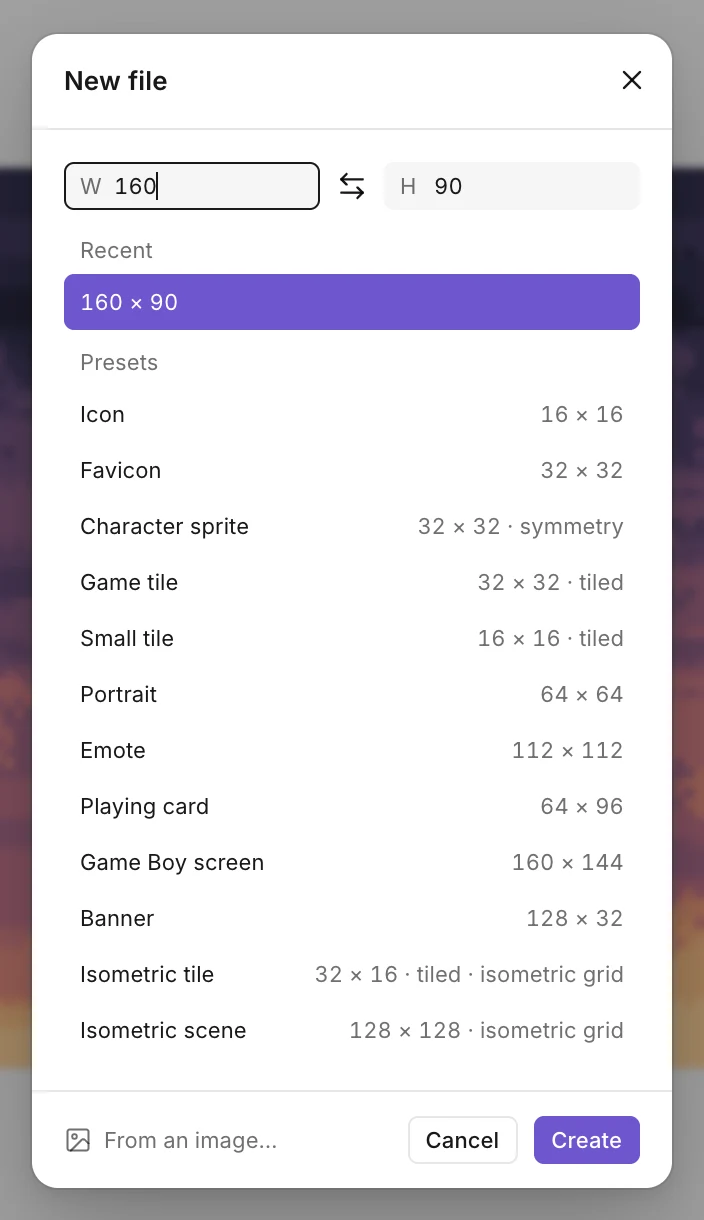
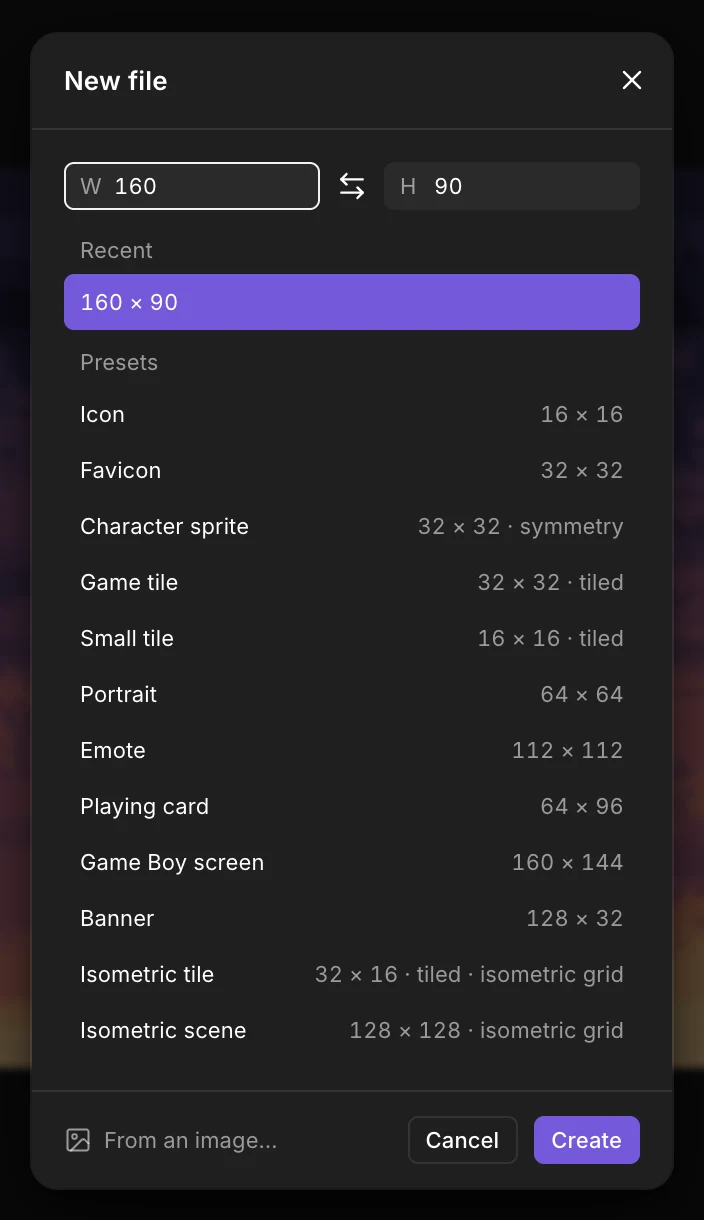
Or start from a preset, each with a size and a palette that suit it. Before your first drawing, the files screen shows them as cards: one click and the canvas is ready.
| Preset | Size | Palette | Comes with |
|---|---|---|---|
| Icon | 16 × 16 | Sweetie 16 | |
| Favicon | 32 × 32 | Sweetie 16 | |
| Character sprite | 32 × 32 | PICO-8 | Left-right symmetry |
| Game tile | 32 × 32 | Endesga 32 | Tile preview |
| Small tile | 16 × 16 | PICO-8 | Tile preview |
| Portrait | 64 × 64 | DawnBringer 32 | |
| Emote | 112 × 112 | AAP-64 | |
| Playing card | 64 × 96 | DawnBringer 16 | |
| Game Boy screen | 160 × 144 | Game Boy | |
| Banner | 128 × 32 | Resurrect 64 | |
| Isometric tile | 32 × 16 | Endesga 32 | Isometric grid, tile preview |
| Isometric scene | 128 × 128 | Resurrect 64 | Isometric grid |
You can change the size later with the W and H fields in the Board section, or Image › Board size… to choose which side grows.
Import an image
File › Import an image…, or drop a PNG, JPG, GIF or WebP on the canvas. An image the size of the drawing comes in as a new layer of it. Any other size becomes a new file, and the message that follows offers to use it as a reference to trace over instead. On the files screen, Import always makes a new file.
Pixel art that was scaled up
A screenshot of pixel art, or an export at 800%, has big blocks instead of pixels. Baipix notices: it finds the pixel grid, even in a cropped image, and offers to recover the pixels, giving you the drawing at its real size. Adjust the scale or the offset if the grid doesn’t fall right, or keep the image as it is.
An animated GIF
An animated GIF comes in as an animation: a new file with one frame for each of the GIF’s, each with its duration. If it was scaled up, Baipix offers to recover its pixels, on every frame at once. A GIF larger than 512 × 512 is reduced to fit, and one with more than 999 frames is cut there; the message after the import says so.
A sprite sheet
File › Import a sprite sheet… cuts a picture into frames. Type the size of a cell, or the number of columns and rows: each follows the other, and the preview shows the grid over the picture. The cells are read from left to right, then top to bottom, and each becomes a frame with the duration you set. Import as single image, or closing the dialog, keeps the picture whole.
A reference to trace over
File › Reference image… places a photo or a sketch under the layers. It’s never exported. Move it, resize it and fade it like a layer, then draw over it and hide it.
Open a .baipix file
File › Open a .baipix file… (Ctrl+O), or drop the file on the canvas. A .baipix file holds everything: the boards, their layers and groups, their frames and light, the components, the palette and the guides. It opens as a new file next to the others.
The drawings in the gallery can be opened the same way: their Open link takes you to the editor with the drawing ready.
Open an Aseprite file
Baipix also opens .ase and .aseprite files: with File › Open a .baipix file… (Ctrl+O), with Import on the files screen, or by dropping the file on the canvas. It opens as a new file, with what Baipix knows how to keep:
- the layers and groups, their opacity, visibility and blend modes;
- every frame, with its duration;
- the palette.
What Baipix doesn’t have yet is left out: tags, slices, tilemaps and tilesets, among others. Background and reference layers become regular layers, a blend mode Baipix doesn’t have becomes Normal, and groups deeper than four levels are flattened. When something was left out or changed, the message after opening says so, and Details lists what.
The drawing has to fit in Baipix: 512 × 512 pixels at most, and up to 999 frames.
Several boards in one file
A file can hold several boards side by side, like frames in a design tool: a sprite and its variants, a scene in four seasons. File › New board adds one beside the active board, and File › Duplicate board copies it with its layers. The Board tool (A) draws one wherever you want.