Pencil and eraser
The pencil (B) and the eraser (E) share their size, tip and stabilizer: what you set for one is set for the other.
The basics
- Left click draws with the front color, right click with the one behind it.
- Size: from 1 pixel up, or press 1 to 9. The brush outline under the pointer shows what you’ll paint.
- Tip: square or round. From 3 pixels, a round tip paints a round shape.
- Hold Alt to pick a color under the pointer, then let go to keep drawing.
Clean lines
- Pixel perfect (on by default) removes the doubled pixels a curve leaves at its corners, so a 1-pixel line stays 1 pixel thick.
- Stabilizer: the line follows the pointer on a string this many pixels long, which smooths a shaky hand. While you draw, the string shows from the pointer to the pixel being painted; on release, the line goes on to the pointer. 0 is off.
- Straight lines: Shift-click draws a straight line from where the last stroke ended. Ctrl+Shift-click locks it to 0°, 45°, 90° or 2:1, the isometric slope.
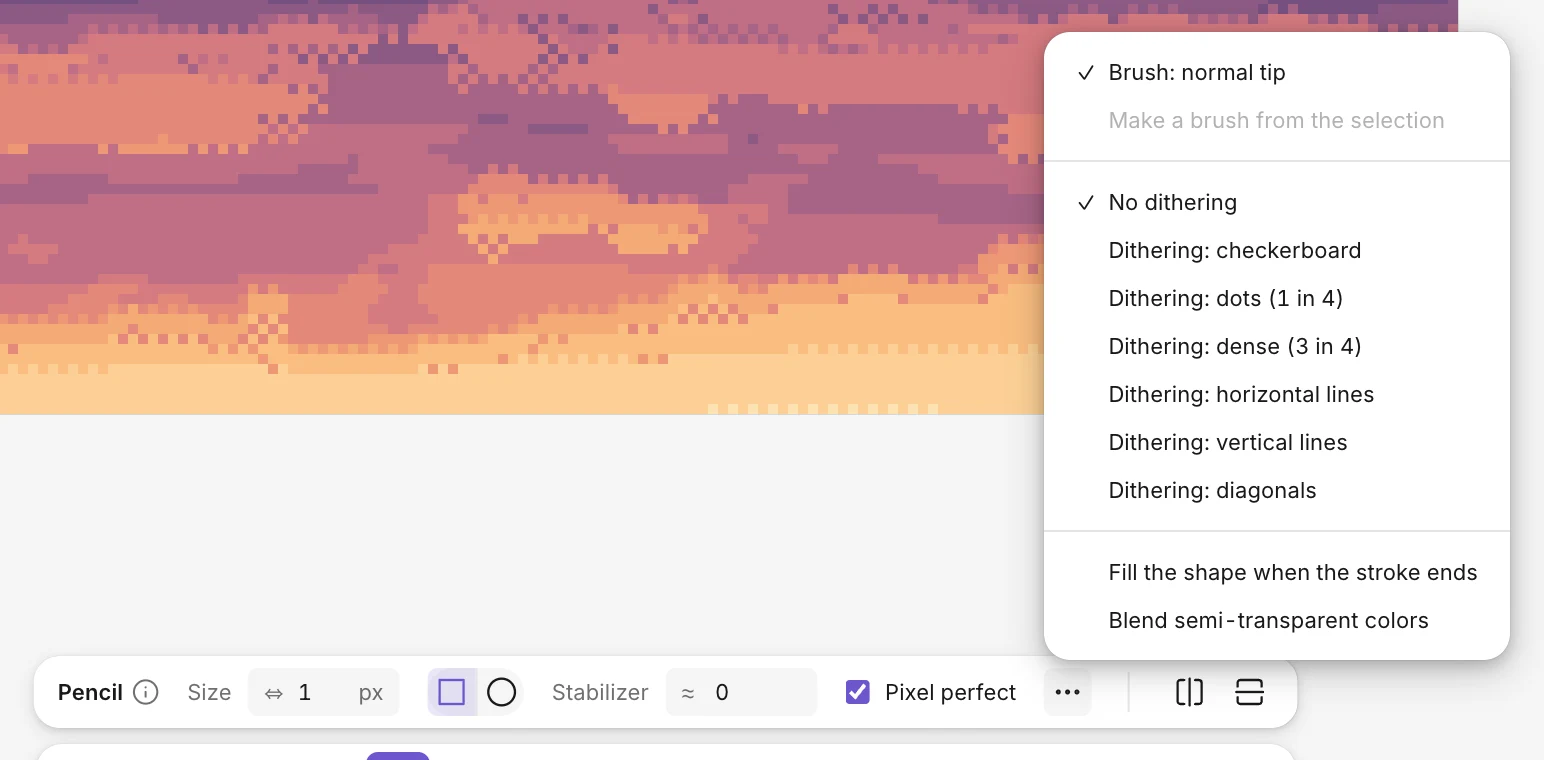
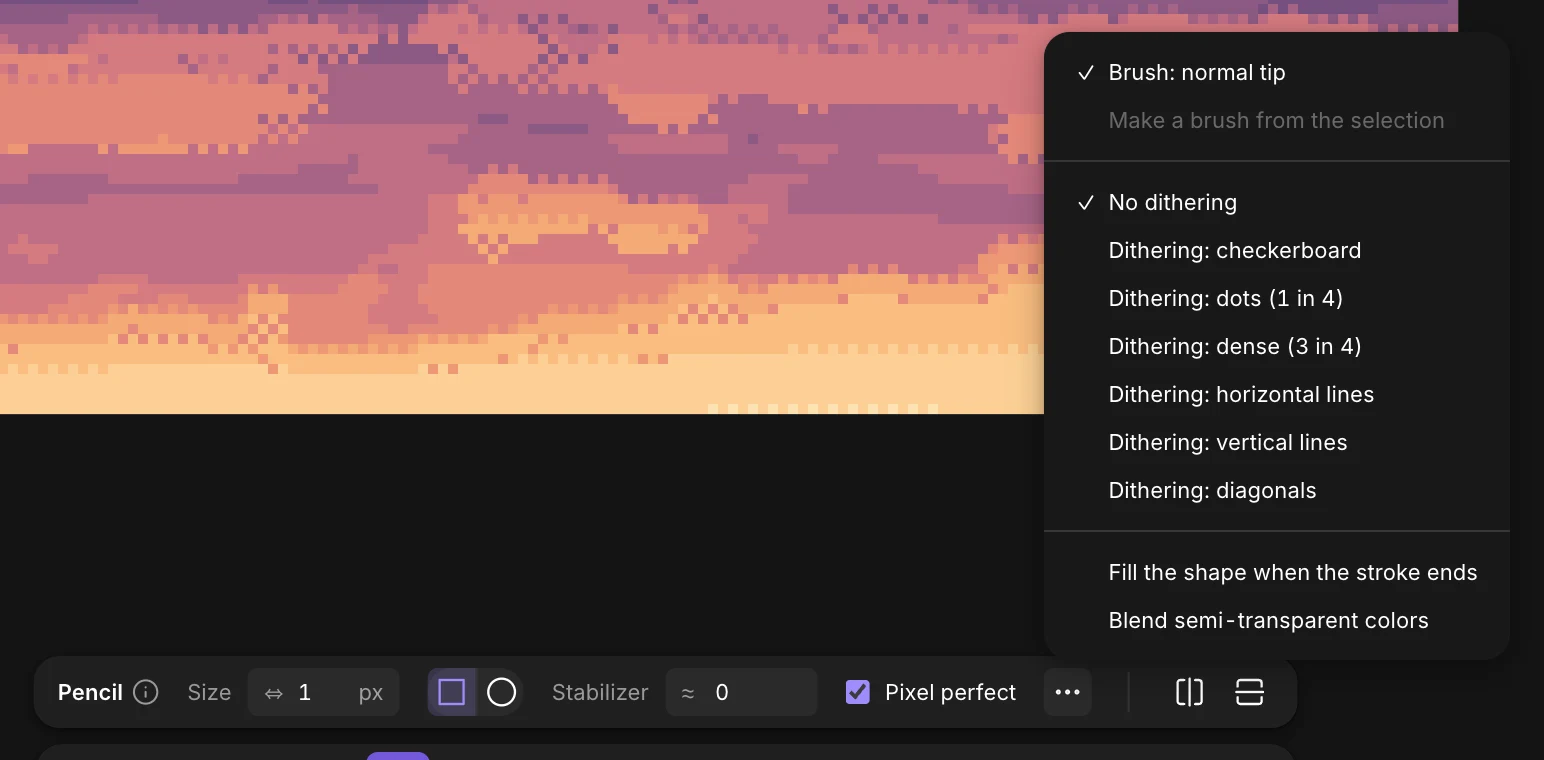
The … menu
- Brushes: select something, then Make a brush from the selection to paint with it. A brush can paint in the current color, or with its own colors.
- Dithering: paint with a pattern that alternates your two colors: checkerboard, dots (1 in 4), dense (3 in 4), horizontal or vertical lines, diagonals.
- Fill the shape when the stroke ends: draw an outline freehand, and it closes and fills when you let go. The Lasso fill tool (K) does just that.
- Blend semi-transparent colors: a color with some transparency mixes with the pixels under it instead of replacing them.
The eraser
The eraser takes pixels back to transparent, with the same size, tip and straight lines as the pencil. To erase only what’s selected, select first: every tool keeps inside the selection.