Selections
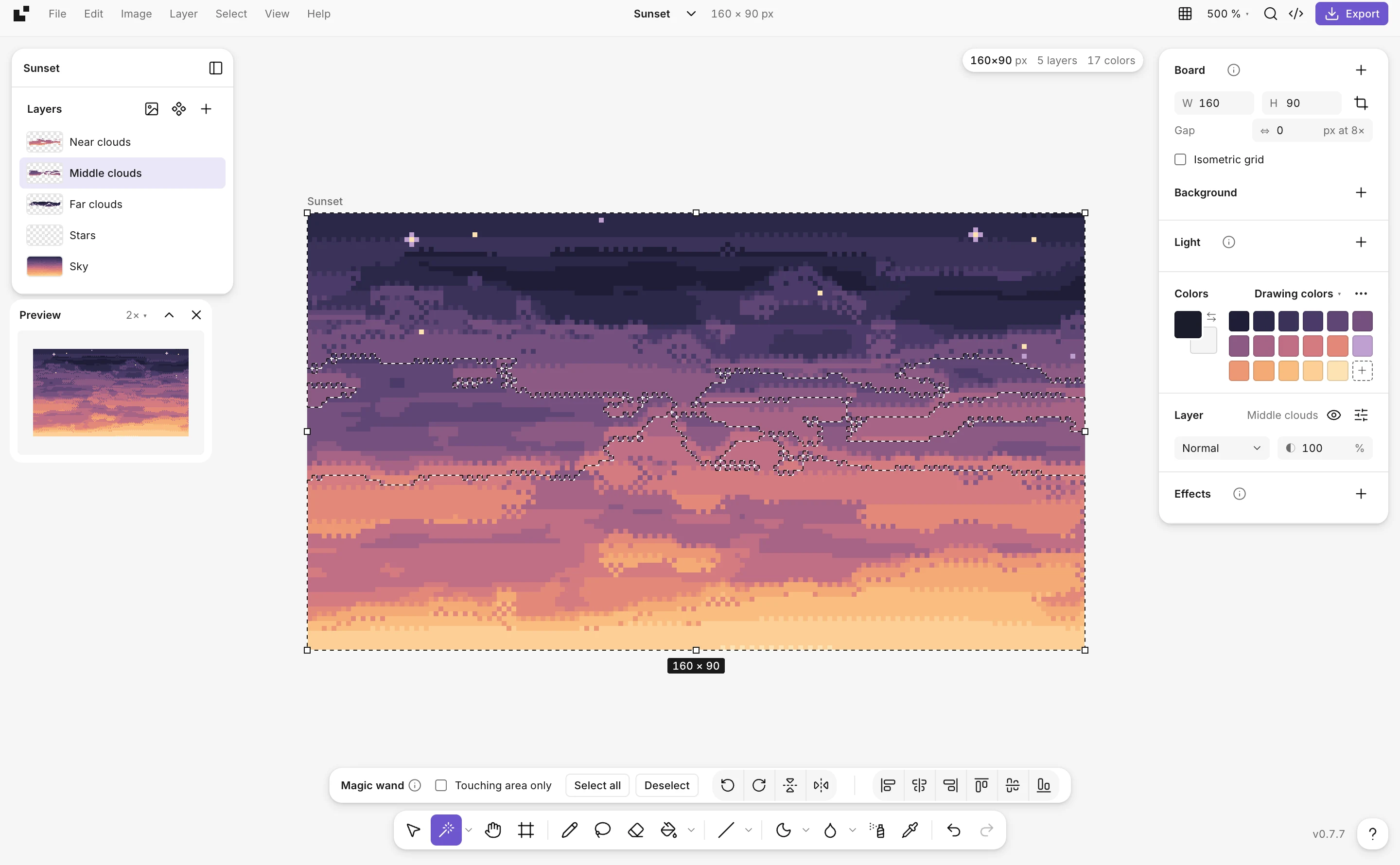
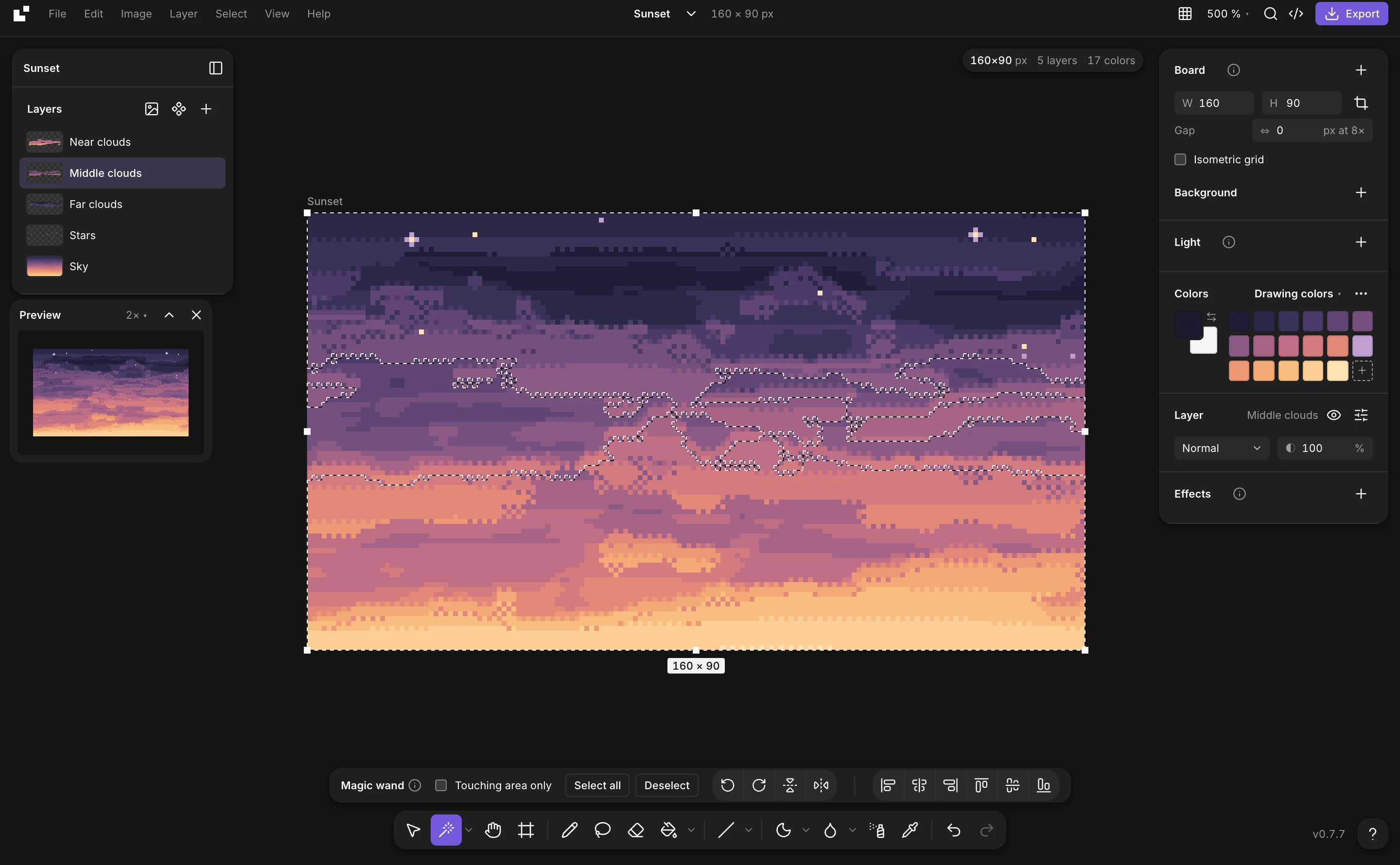
Three tools share a button: the rectangle (M), the lasso (Q), which follows your hand and closes when you let go, and the magic wand (Y), which selects a color’s area, or that color everywhere with Touching area only off.
- Shift adds to the selection, Alt takes from it.
- Select › Select all, Invert selection and Deselect are in the Select menu. Select all and Deselect are also in the selection tools’ options, and Deselect in the Move tool’s while something is selected.
- Ctrl+A selects all, Ctrl+D or Esc deselects.
Use it
- Every tool keeps inside the selection: paint, fill, blur or erase without touching the rest.
- Drag it to move what’s selected. The arrow keys nudge it by 1 pixel, with Shift by 8.
- Ctrl+C, X and V copy, cut and paste. A paste lands as a new layer, with the selection’s exact shape (several areas picked with the wand and Shift stay apart). The copy goes to your system’s clipboard too, as a picture to paste in another app.
- Del clears it, Shift+Del fills it with the color (with nothing selected, the whole layer).
- Flip and rotate it with the Image menu, or turn it into a brush from the pencil’s … menu.