Blend modes and effects
Blend modes and opacity
In the Layer section of the right panel, under the layer’s name:
- Blend mode: how the layer mixes with what’s under it. Darken, Multiply, Color burn, Lighten, Screen, Color dodge, Overlay, Soft light, Hard light, Difference, Exclusion, or Normal. Hovering a mode in the list previews it on the canvas.
- Opacity, from 0 to 100%: drag left or right anywhere on the field, or click it to type the number.
A group has them too. Its Pass through mode (the default) lets its layers mix with everything under the group, as if it weren’t there.
Effects
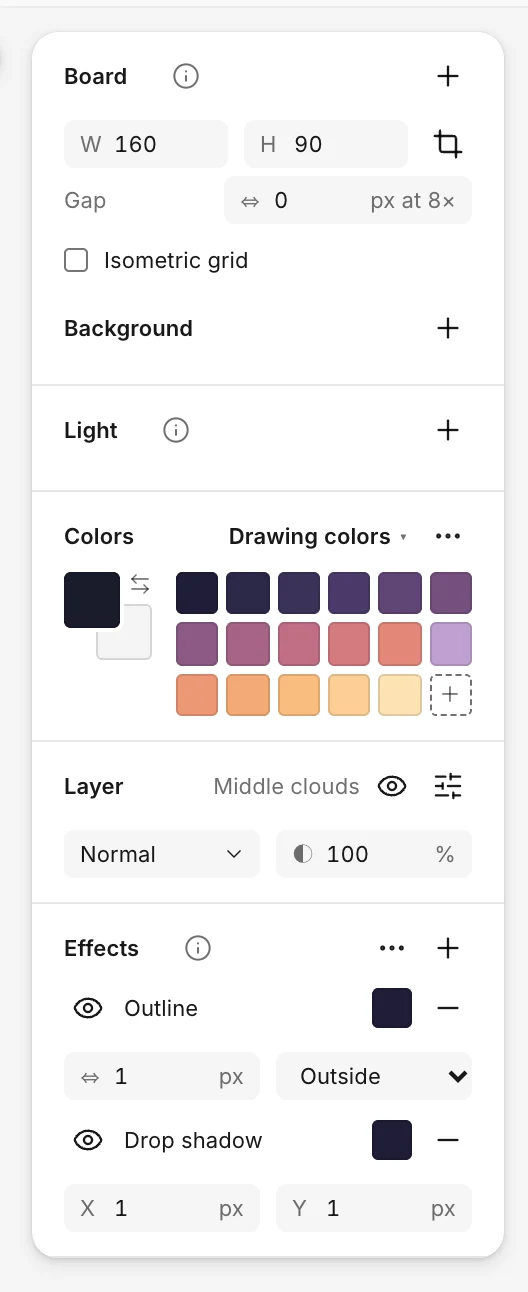
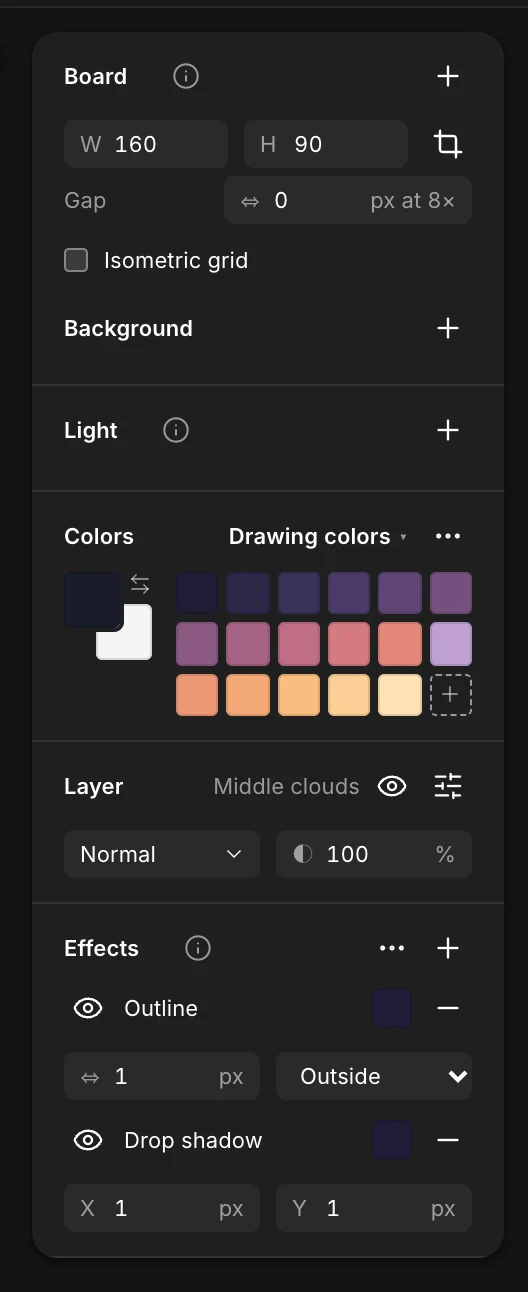
Effects are drawn from the layer’s pixels without changing them: tune them, hide them or remove them anytime. They show on the canvas and in every export.
The + next to Effects adds one:
- Outline: a line around what’s drawn, of the size you set, outside or inside, with round or square corners, in its color.
- Drop shadow: a copy of the drawing in its color, shifted by X and Y pixels. When the board has a light, Follow the light sets X and Y from it.
- Glow: a halo around the drawing, of the size you set, that fades in dithering rather than in new shades: the pixel art way.
Each effect’s swatch opens its color: any color, and its opacity, above the palette’s colors. A drop shadow in black at 30% darkens what’s under it instead of covering it. Picking a palette color keeps the opacity you set, and an effect that isn’t opaque shows its opacity beside its swatch.
Each effect has an eye to hide it and a − to remove it. The … menu next to Effects can apply the effects to the pixels, to draw them into the layer for good.