Move, resize and rotate
The Move tool
With the Move tool (V), the layer you’ll move is framed, with handles around its pixels.
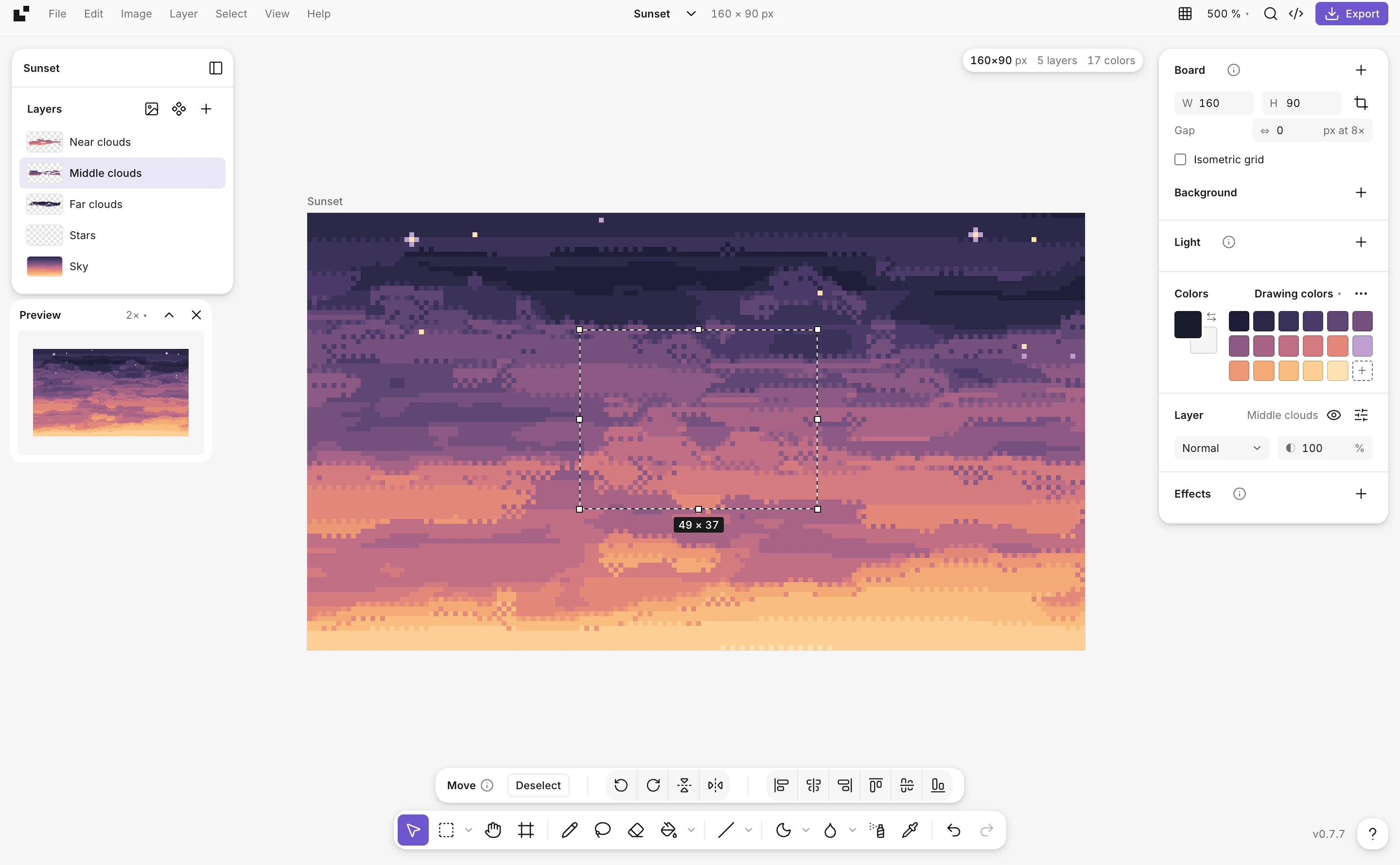
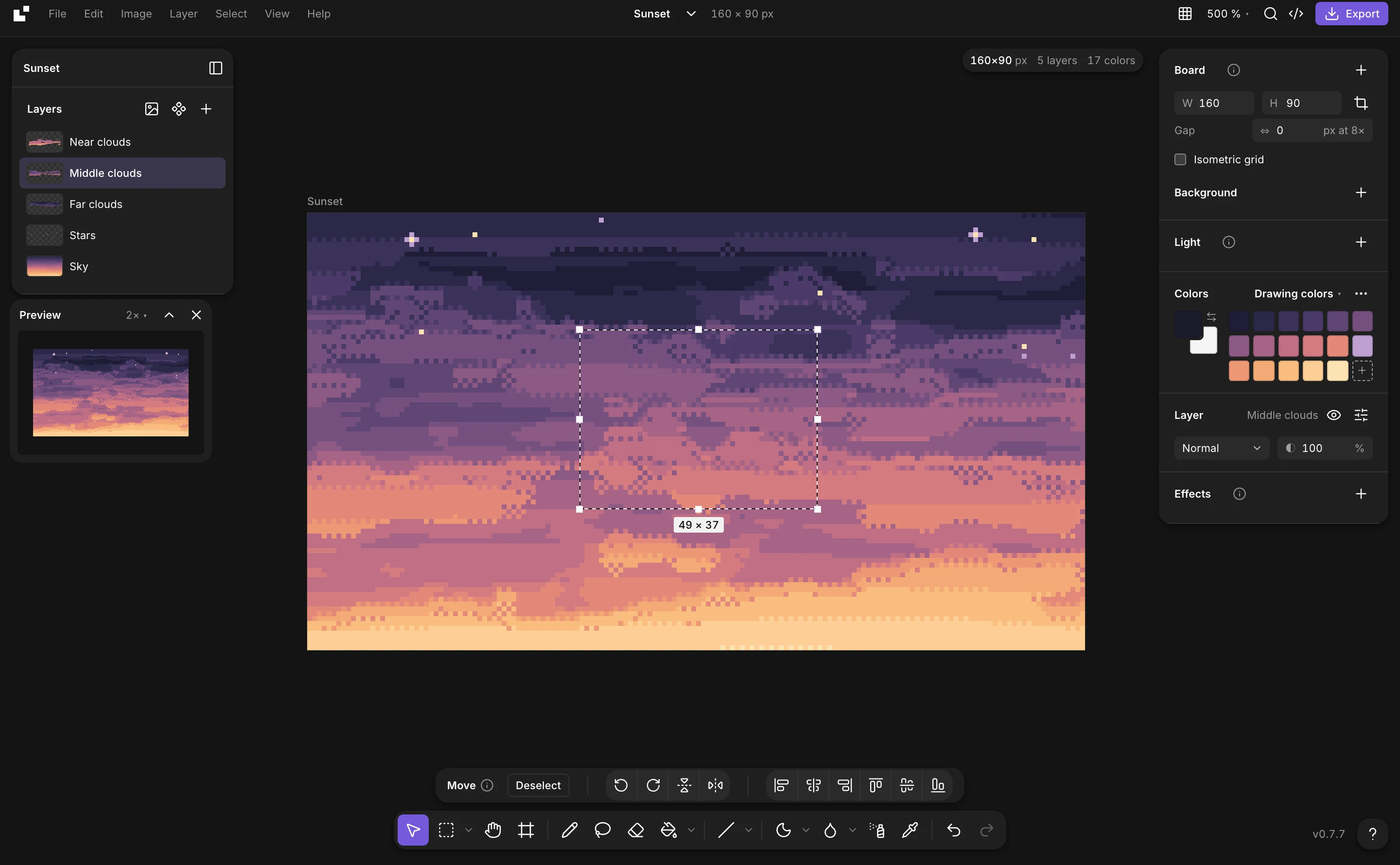
- Click a pixel to grab its layer, and drag. Hold Ctrl to move the active layer wherever you click.
- Arrow keys nudge it by 1 pixel, with Shift by 8.
- Click an empty spot, or press Escape, to let go of the frame.
- A layer dragged out of every board stays there, beside them: see Boards.
Resize and rotate
- Drag a corner or a side of the frame to resize, with sharp pixels. Shift keeps the proportions, Alt resizes from the center.
- Just outside a corner, the cursor turns: drag to rotate.
- Several selected layers resize and turn together, as one.
Flip, turn, align
In the Image menu, for the selection or the layer:
- Flip horizontally (Shift+H) and vertically (Shift+V).
- Rotate 90° clockwise (Shift+R) or counterclockwise (Alt+Shift+R).
- Align what’s drawn to the board: left, center, right, top, middle or bottom (Alt+A, H, D, W, V, S).